
How To Accept & Manage Online Bookings
In certain categories you can set up a complete online booking calendar. And allow users to request bookings though our website! This is an excellent way to organise yourself and keep track of your bookings. To accept/enable online booking requests in our Adult classifieds, please follow the steps below:
If you do NOT want to accept online bookings, of it you want to turn them off after activating them – then just ensure all the fields mentioned below are left blank, in particular the booking days and available from/to fields! This will ensure online booking requests are turned off for your listing.
When you are adding a listing to a category or when your editing an existing listing that has online bookings enabled. You will see the fields as shown in the screenshot below appear:
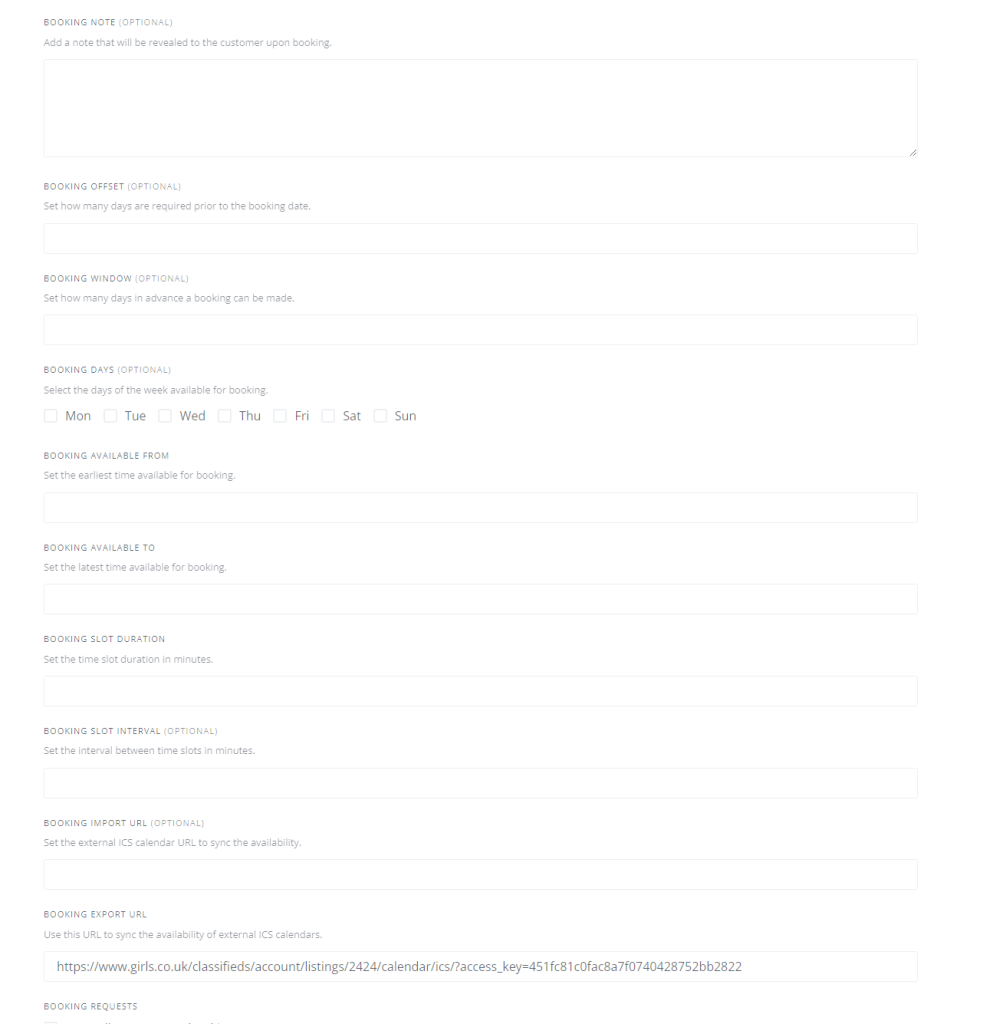
Form here you can configure several options relating to online bookings. I will go though some of them with you now so you better understand them:
1. Booking offset – this is how much notice you want to allow yourself for booking requests. If you enter 1 in here, then it means no one can book you less than 24 hours in from now. So everyone requesting a booking basically has to give you 24 hours advance notice. If you are happy to take bookings in real time E.G same day bookings, then leave this empty.
2. Booking Window – This is how much in advance you can be booked. So for example if you are happy to configure your calendars (more on that later) a month in advance or more, then you can set in here 30 days, or if you are only happy to accept them up until 7 days in advance, then just enter 7. If you do not want to put any restriction on it, just leave it blank.
3. Booking Days – Select which days you are normally available. For example if you never work weekends, then leave Saturday & Sunday unchecked. You an always edit it later. But you should select the days you always work in general.
4. Booking available from and booking available to fields – If you work the same hours every day your available, then you can select the start and finish times in here and no need to do anything else. If your availability is different each day or if you want more granular control over your booking availability. Then you should enter in here From 12am and to 12pm and then you can control the exact hours your available from booking on your calendars (more on that below)!
5. Booking slot duration – This is the duration of time that people can book for. People can book multiple slots of these times. So for example if the minimum duration of your service is 30 minutes, then enter 30 in here (this means people can request to book 30 mins, or multiples of it e.g 60 mins, 90 mins, 180 mins etc), if its one hour then enter 60 in here. All entries must be in minutes. If for example you only do 1 hour slots, but after that would offer 90 mins e.g 1.5 hours, you can still set this to 30 mins, just mention on your write-up the minimum is 1 hour so do not try to book 30 mins only for example.
6. Booking slot interval – This is how much time you want to add between bookings, this is useful if your working from a set premises for example. But if you a mobile worker and not sure, you are best to just leave this empty and deal with the booking requests as they come in or manually block time out on your calendar (as shown later below). Whatever you enter here must be in minutes only.
7. Booking import URL – Is you have another booking calendar you use that uses ICS format, then you can put the url of its export function here to automatically import and sync it with this calendar.
8. Booking export URL – If you have another ICS calendar you use (such as google etc) then you can set it up to auto import/sync your bookings made on your calendar here by using this URL and following the instructions laid out by your other calendar provider.
9. Manually accepting bookings – Recommended – When you get an online booking request, you will be notified of it by email. It will also appear in the bookings section of your online user account with us. You can choose that you have to manually accept all booking requests or if you just want to automatically accept them. We recommend you always select to manually accept them, this ensures the user knows that booking is properly confirmed and it also gives you time to see who is requesting the booking and give you the opportunity to message that user and ask any questions etc. To ensure you manually accept bookings, please make sure the box is ticked next to the option as shown in the screenshot below!

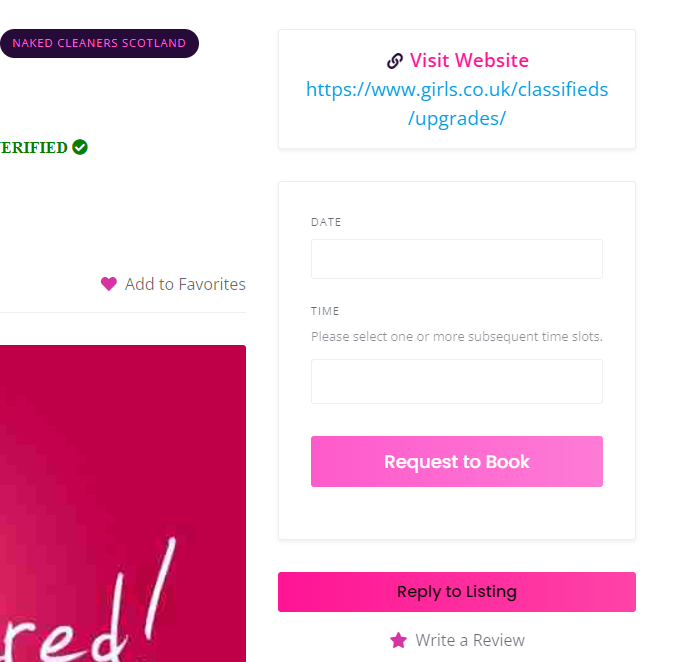
Once that is all set up, you will not see the online booking request form appear on your listings as shown below in the screenshot:
How set up & view your booking calendars
Every listing is assigned a booking calendar. You can access these calendars from the listing admin screen (See this documentation for details on how access the listings admin: How to manage my listings.). You can also browse to your listings on the front end when logged in and you will see the calendars tab appear at the top of it for you.
The booking calendars will look like the screenshot below:

From the booking calendars screen, you will see all your booking slots. You can also highlight times on the days and click the padlock icon to close them off so no bookings can be taken. You can also open up locked days or times by selecting them and clicking on the unlocked padlock icon. You can also move between weeks using the < > icons at the top.
How to access & admin booking requests
Once you have a booking request made for you, it will so in your user area of the website. The menu item wont appear until you have at least one booking request. You can then see all your booking requests and administrate them as needed. Including see the exact details, the users contact number and also you can message them if needed. Furthermore, you can carry out operations such as accepting the booking (if you have chosen to manually accept bookings), cancel them, view their details etc.
Showing just your availability
Please remember the online bookings function is different to the showing your availability. You should try to show your availability on your listings also. If you do not want to accept online bookings, you can at least still show your availability. To learn how to use the availability function, please see this doc: How to add availability and opening hours.

 2 out of 2 people found this useful